- Documentation
- FlowFuse User Manuals
- Using FlowFuse
- Getting Started
- Static asset service
- Bill of Materials
- FlowFuse Concepts
- Instance States
- Changing the Stack
- Custom Hostnames
- Custom Node Packages
- Dashboards
- DevOps Pipelines
- Environment Variables
- FlowFuse Expert
- FlowFuse File Nodes
- FlowFuse MQTT Nodes
- FlowFuse Persistent Context
- FlowFuse Project Nodes
- FlowFuse Tables
- Groups
- High Availability mode
- HTTP Access Tokens
- Instance Settings
- Logging
- Role-Based Access Control
- Shared Team Library
- Snapshots
- Team Broker
- Teams
- User Settings
- FlowFuse API
- Migrating a Node-RED project to FlowFuse
- Device Agent
- Device Agent
- Hardware Guides
- FlowFuse Cloud
- FlowFuse Cloud
- FlowFuse Self-Hosted
- Quick Start
- Installing FlowFuse
- Upgrading FlowFuse
- Administering FlowFuse
- Support
- Community Support
- Premium Support
- Debugging Node-RED issues
- Contributing
- Contributing to FlowFuse
Logs
FlowFuse presents log information in several different places depending on what you are interested in.
Node-RED Logs
The Node-RED logs are available for all instances running within the platform.
They will contain information such as nodes being added and errors relating to your flows.
The log information is kept back to the last time the instance container was restarted, you can view older information on the Load earlier... link at the top of the log.
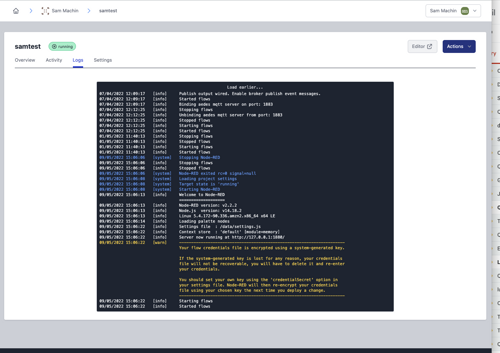
Node-RED logs can also be output from the Containers/Pods that run Instances on Docker or Kubernetes. This is enabled by the forge.logPassthrough option. More details can be found in the Configuration documentation.
Audit Log
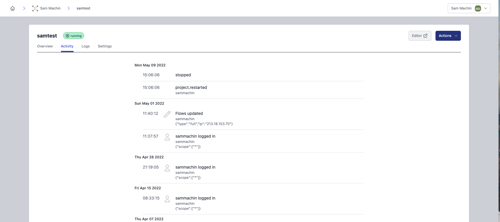
The Audit Log tab on the application and instance views shows key events that have happened.
The events include:
- User logging into the editor
- Flows being updated
- Nodes installed
- Snapshots being created
- Resource utilization warnings
This log contains all events since the instance was created. You can view older data using the Load More... link at the bottom of the log.
Resource utilization warnings
If the CPU or memory usage exceeds 75% for more than 5 minutes, a warning will be displayed in the Audit Log, indicating that measures such as upgrading the instance are recommended.
Team Audit Log
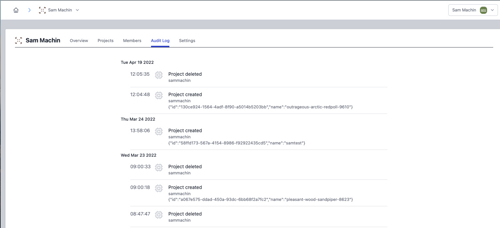
From the Team page the Audit Log shows events relating to the management of the team.
This includes:
- Applications/Instances being created or deleted
- Users being added/removed from the team
This log contains all events since the team was created. Tou can view older data using the Load More... link at the bottom of the log.
MCP and API Activity
For entries triggered via the API or an MCP client, both this log and the instance/application-level Audit Log above show an icon next to the entry, indicating which:
- A sparkle icon means the action was performed by FlowFuse Expert, or another MCP client, acting on the user's behalf. Hovering over the icon shows the name of the tool that was called.
- A terminal icon means the action was made via the API, using a Personal Access Token.
Entries for actions made directly through the FlowFuse UI show no icon.
This gives you a reviewable record of what an AI client did on your platform, and under whose authority - the same accountability you already have for actions taken by people.